


In the realm of Business Intelligence and Analytics, NetSuite Analytics Warehouse (NSAW) emerges as a powerful cloud-based solution, seamlessly integrating various data sources to empower analysts and business enthusiasts. This blog delves into the features of NetSuite Data Warehouse, with a specific focus on its data augmentation capabilities aimed at enhancing the analytical landscape.
NetSuite Analytics Warehouse Features
NSAW serves as a consolidated hub for diverse data sources, including NetSuite data, CSV files, and other business systems. It leverages the Oracle Analytics Cloud and Oracle Autonomous Data Warehouse, providing pre-built connectors, data visualization, KPI monitoring, and a streamlined data pipeline for NetSuite. The platform facilitates immediate access to pre-built dashboards with out-of-the-box key performance indicators (KPIs) and an analytics data model for in-depth NetSuite data analysis.
Key Capabilities
Data Export and Accessibility
- Export reports and dashboards to popular formats like PDF, PNG, PPT, and CSV.
- Non-NetSuite users can access NetSuite information through NSAW. Custom Dashboards:
- Create custom dashboards using both NetSuite and third-party data.
Introduction to Data Augmentation
This innovative process allows users to import and manipulate Custom NetSuite records, lists, segments, and fields, providing a comprehensive framework for nuanced data analysis. Within the Oracle NetSuite Analytics Warehouse, the data pipeline orchestrates the extraction and loading of information from NetSuite’s standard transaction objects, seamlessly integrating standard records into the warehouse infrastructure. What sets Data Augmentation apart is its versatility, enabling the utilization of both system-provided and customer-provided source tables. While system-provided tables undergo prevalidation, ensuring a standardized integration process, customer-provided tables represent additional custom transaction objects available for extraction.
Benefits of Augmentation
- Granular Customer Insights: The augmentation process allows for the creation of detailed customer segments, offering nuanced insights into customer categorization.
- Subject Area Integration: Integrate the configured Custom Segment into specific subject areas within NSAW, facilitating a cohesive analytical environment.
- Enhanced Decision-Making: By seamlessly incorporating customer-type information into Sales Orders and leveraging NSAW dashboards, businesses can make informed decisions based on a comprehensive understanding of customer profiles.
Use Case
Within the Netsuite data model, suppose we establish a Custom List titled ‘Customer_Type’ and populate it with options such as ‘New Customer’ and ‘Existing Customer.’
This Custom List allows for the inclusion of various values. Consequently, when selecting a customer from this list in a Sales Order, it will display whether they are a ‘New’ or ‘Existing’ Customer.
Please note: this information will only appear if the ‘Customer_Type’ value has been previously assigned to that specific customer.
To achieve this customization within NSAW, we utilize the Augmentation Process. Upon configuring this list, utilizing the dashboard within datasets allows for easy identification of ‘New’ or ‘Existing’ Customers.
Data Augmentation Process
Data augmentation involves the strategic manipulation and enrichment of your existing dataset to provide a more comprehensive and nuanced perspective for analysis. This transformative process goes beyond simple data retrieval, aiming to amplify the value of your data by introducing new dimensions, refining existing attributes, or generating synthetic data points.
How to navigate to Data Augmentation within NSAW?
On the Oracle NetSuite Analytics Warehouse home page, open the Navigator menu, click Console, and then click Data Configuration.
On the Data Configuration page, click Data Augmentation. On the Data Augmentation page, click Create Augmentation.
We can see the data augmentation with multiple steps. We can create the following augmentation types:
- Create Dimension
- Create Fact
- Extend Entity.
We can see the data augmentation pipeline jobs on the Data Augmentation page with one of the below statuses:
- Activation in Progress – We can not edit, delete, or schedule a data augmentation pipeline job while activation is in progress.
- Activation Completed -We can edit the data augmentation to add or delete attributes and save the changes. We can not modify the schedule in this status.
- Activation Scheduled – We can edit the data augmentation to add attributes.
Furthermore, values have been inputted under this Custom Segment in Netsuite.
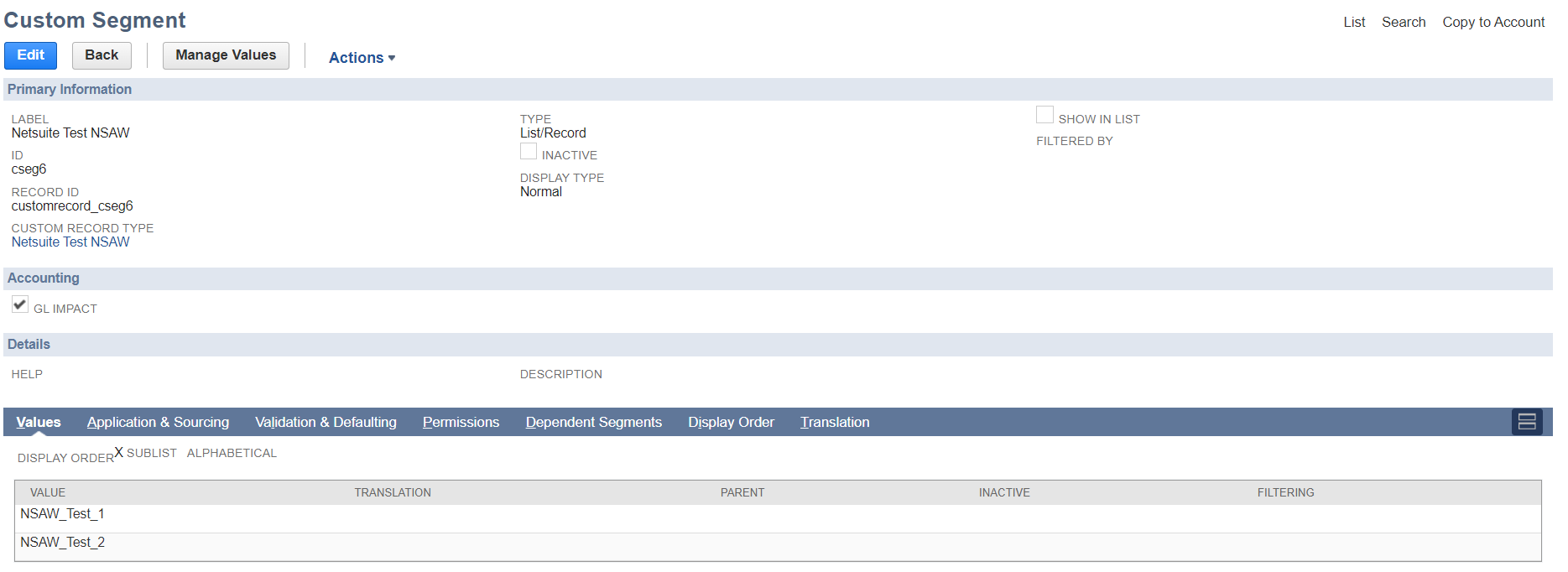
This is the Custom Segment that we have to configure in Netsuite – Sales Order in NSAW using the Augmentation Process.
Steps to Create a Dimension
For Custom Dimension only four steps are required.
Step 1- Source Selection
Augmentation Type: Custom Dimension
Source Dataset Type: Custom_Record
Source Table Type: System Provided
Source Table: The source Table that we have to select here is the one that we have created in NetSuite Custom Segment
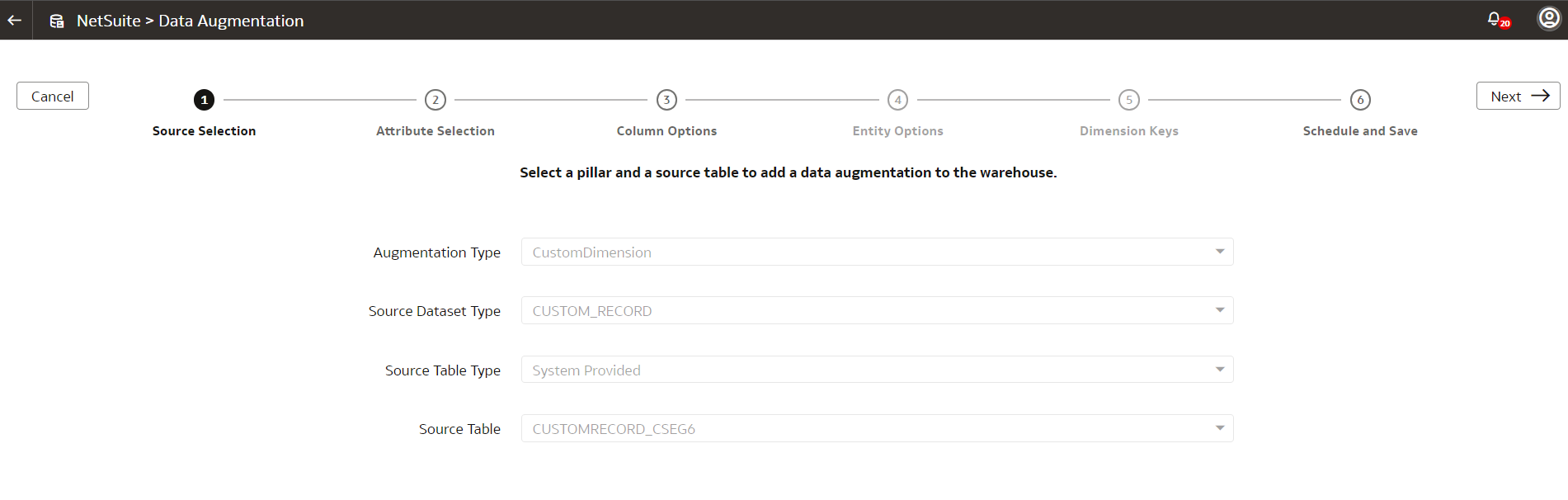
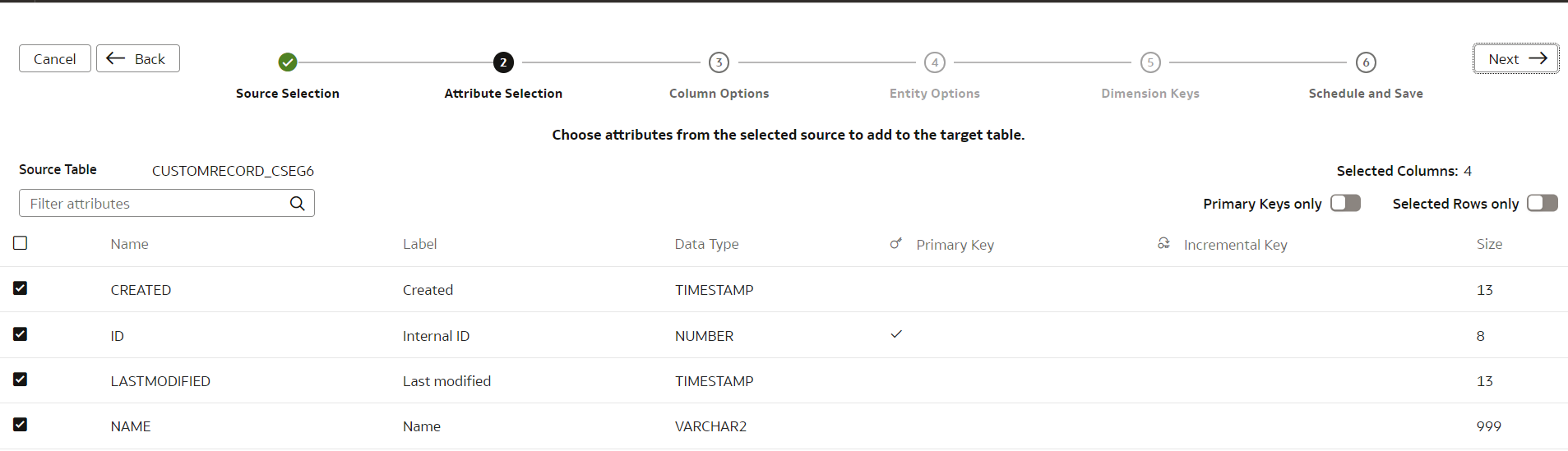
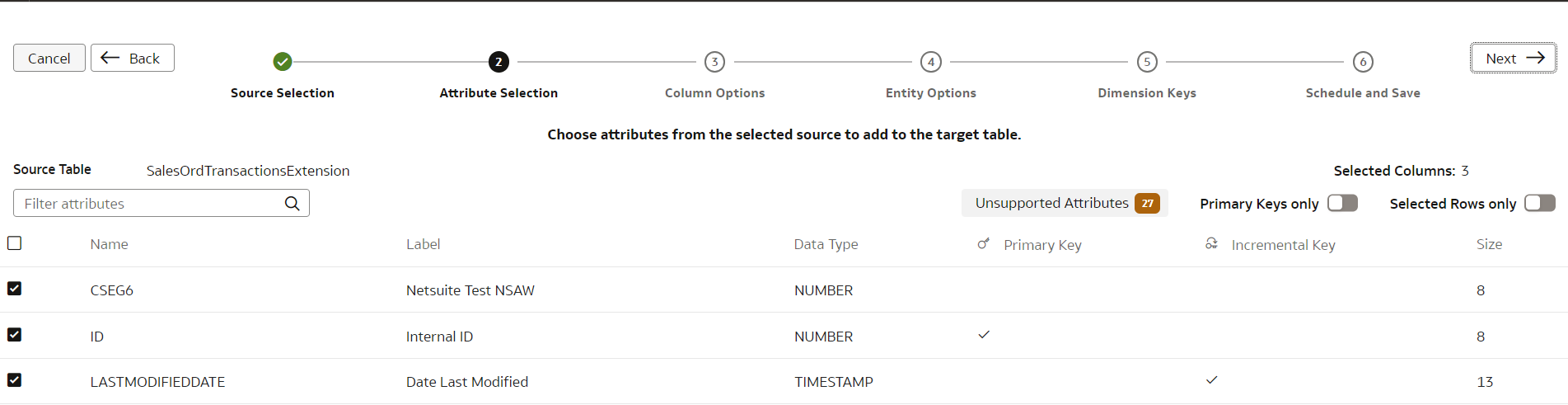
Step 2 – Attribute Selection
Select the checkbox for the attributes for Custom Dimension that we want in the new dimension
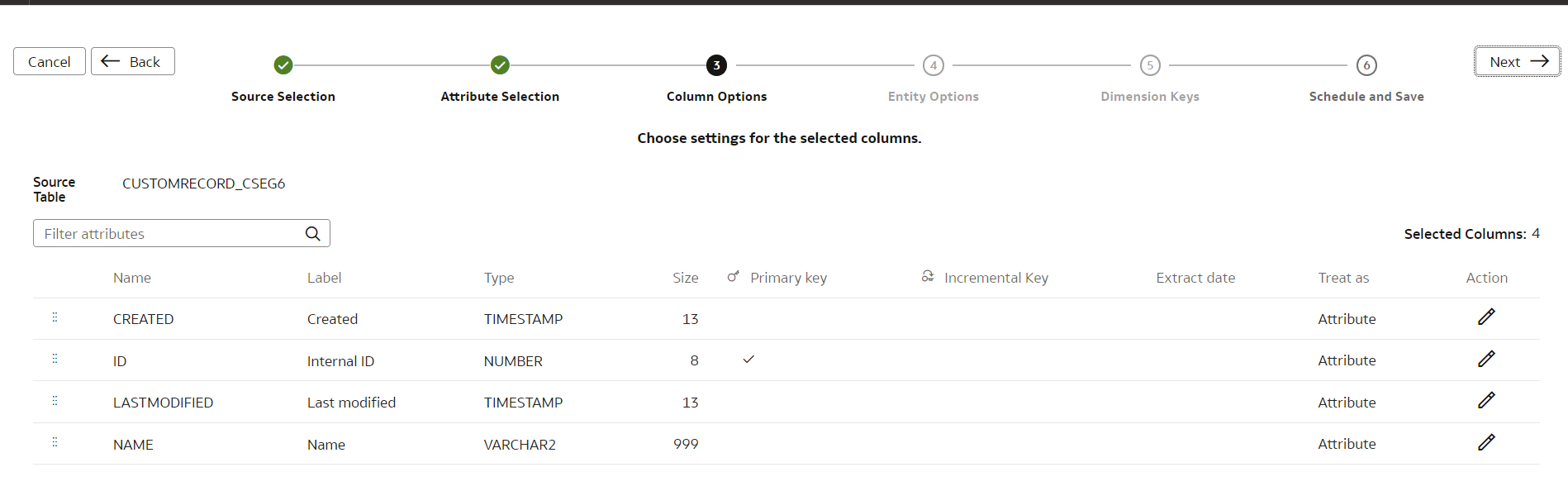
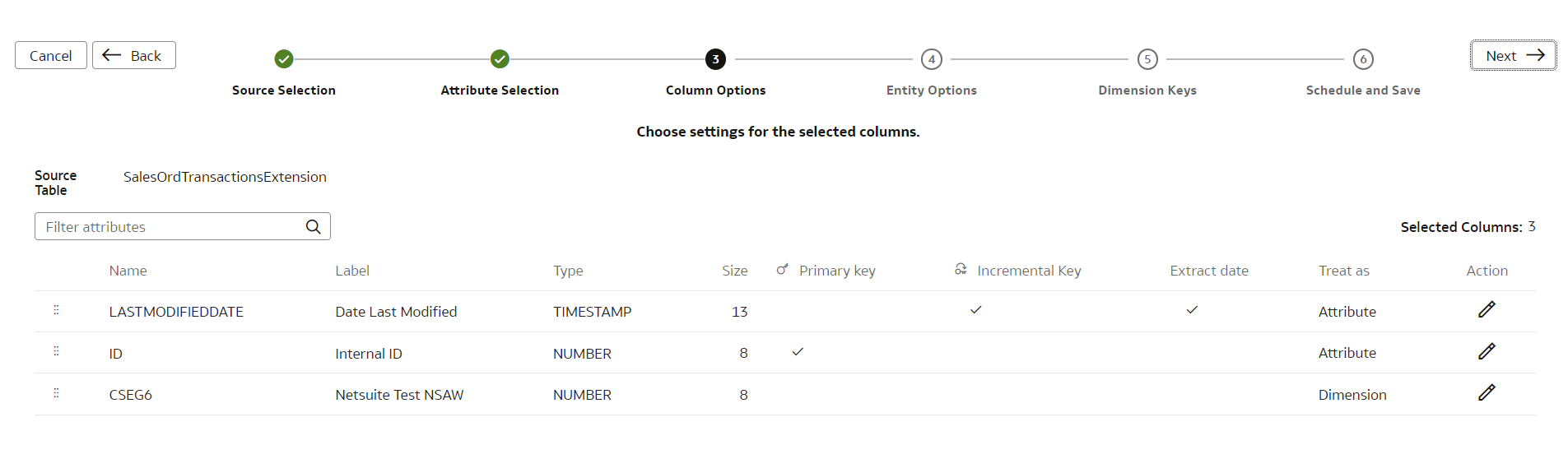
Step 3 – Column Options
We can see the attributes that we have selected in the Target attributes pane.
Step 4 – Schedule and Save
This is the last step in which we have to save Dimension with the Table Name.
Name: Netsuite_Record
Enter the Table suffix for the target table name using an underscore in place of spaces between words. for example, Netsuite_Record.
The augmentation process automatically creates the target table name.
Subject Areas – We can choose the Subject Area in which we have to create a Custom Dimension.
We can also schedule augmentation and run and then click Finish to complete the process.
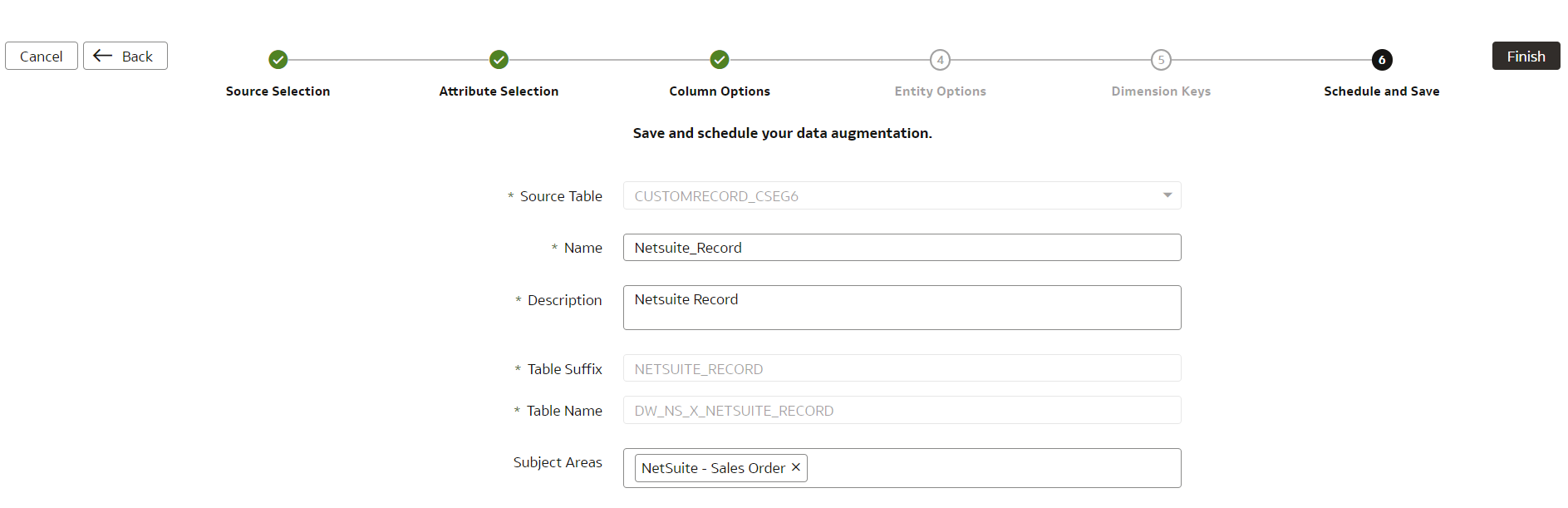
After finishing the process, we have to wait for the Activation Complete Status

Steps to Create an Extend Entity
To extend the required Custom Dimension that we created in Augmentation we have to create an Extend entity in Augmentation to configure in Subject Area in NSAW.
Step 1 – Source Selection
Augmentation Type: Extension
Source Table: SalesOrdTransactionsExtension
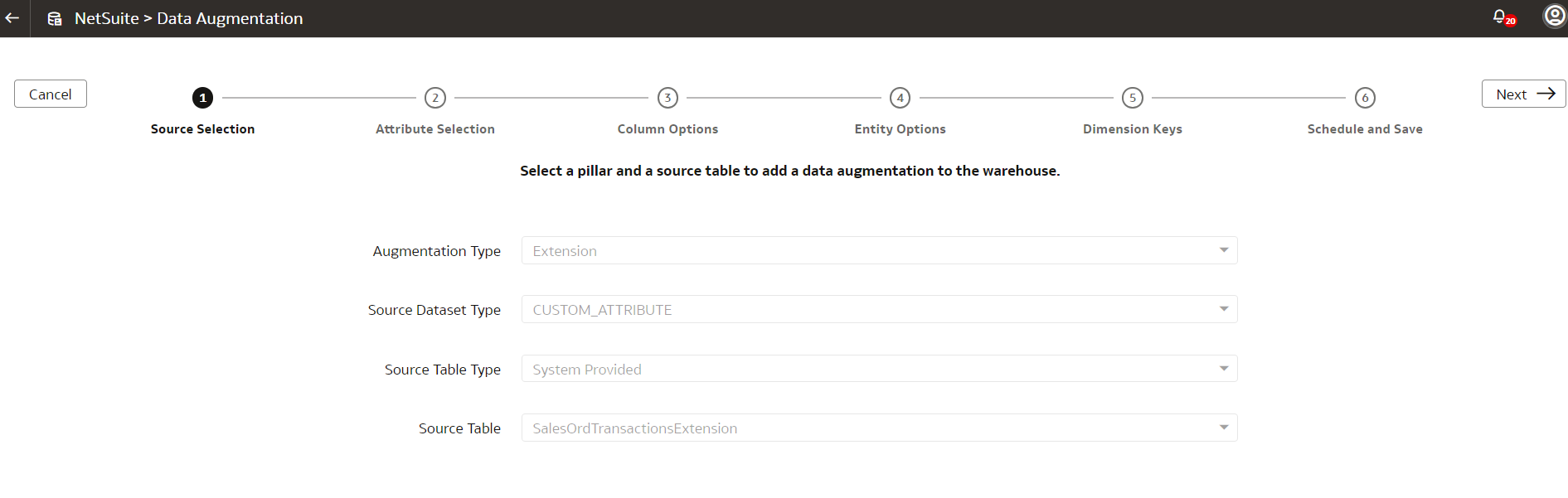
Step 2 – Attribute Selection
Step 3 – Column Options
Make sure that we have selected here Treat as Dimension for Custom Dimension Name
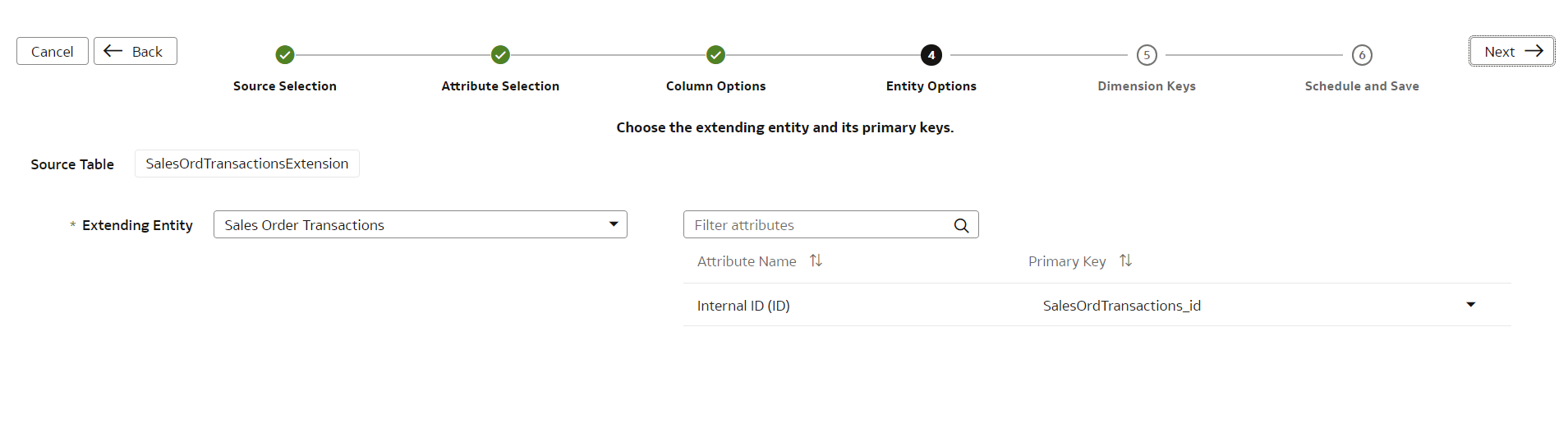
Step 4 – Entity Options
We have to select the Primary key of Sales Order Transactions and Attribute Name as ID to join.
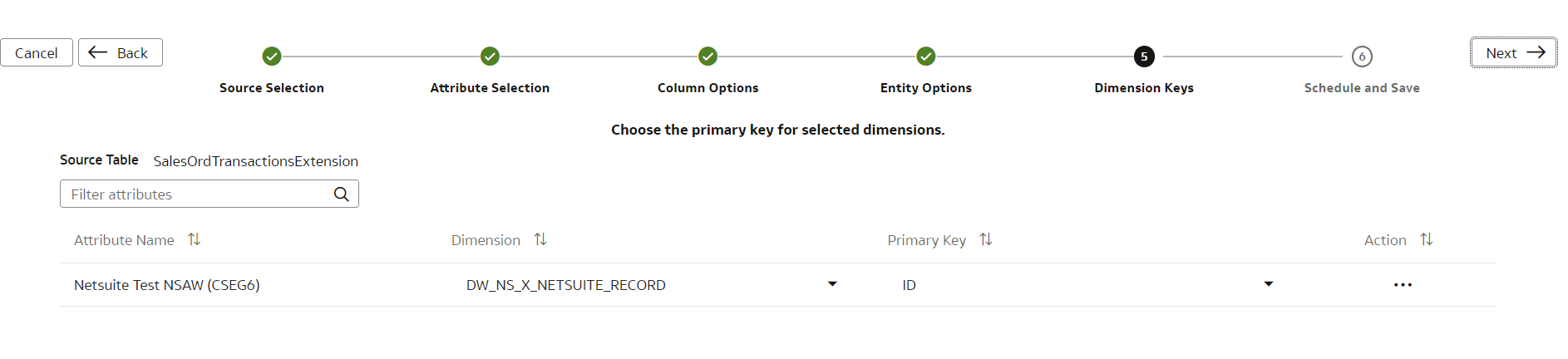
Step 5 – Dimension Keys
We have to select the Dimension Table and its Primary Key.
Step 6 – Schedule and Save
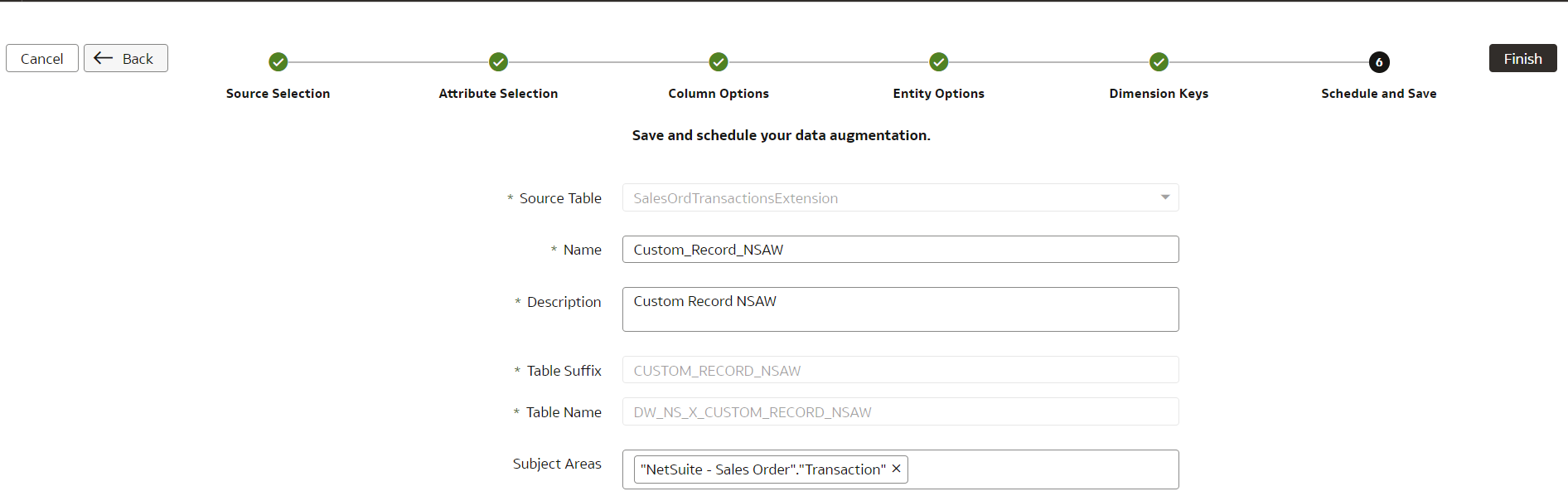
After finishing the process we have to wait for Activation Complete Status

Output
Now we have successfully configured the Custom Segment in Table.
It will be visible in Oracle ADW Connection(OAX_USER) by Table_Name.
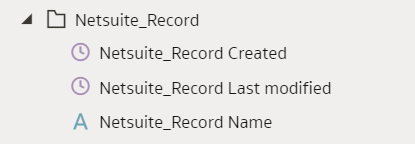
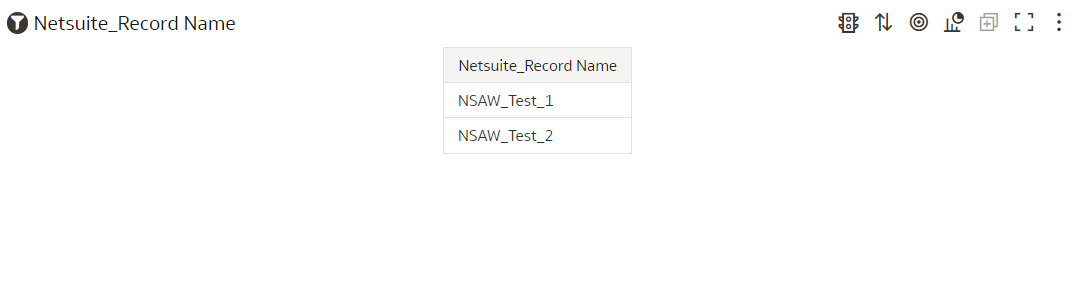
We can also see Dimension in the subject area that we have selected in the augmentation process.
Netsuite – Sales Order
Conclusion
- NSAW’s data augmentation capabilities empower users to import and visualize custom NetSuite records, lists, segments, and fields.
- NetSuite data visulization functionality significantly enhances subject areas, enabling the creation of tailored reports and dashboards to meet specific analytical requirements.
Want to get additional insights direct to your inbox?
Subscribe to Riveron Insights and get relevant news and trends shaping the world of finance, accounting, and operations.